
Your iPhone used to feel lightning fast. Apps opened instantly, Safari loaded pages in seconds, and everything worked smoothly. Then suddenly, things changed. Apps started freezing, storage filled up for no reason, and your phone felt slower than usual.
Sound familiar?
In most cases, the problem isn’t your iPhone itself. It’s the hidden clutter building up behind the scenes — cache files. If you’ve been wondering how to clear cache on iPhone for faster performance, you’re in the right place.
Cache files are temporary data stored by apps and browsers to help speed things up. However, over time, they can pile up and create the exact opposite effect. Your device becomes sluggish, apps misbehave, and storage mysteriously disappears.
The good news is that clearing cache on iPhone is surprisingly easy. Better yet, it can instantly improve performance without deleting your important files, photos, or messages.
In this guide, you’ll learn exactly how to clear cache on iPhone step by step, why cache matters, which apps create the most junk files, and how to keep your device running smoothly long-term.
What Is Cache on iPhone?
Before diving into the cleanup process, it helps to understand what cache actually is.
Cache is temporary data saved by apps, websites, and system processes. Its purpose is simple: speed things up. For example:
- Safari stores website images and scripts
- Instagram saves viewed photos and videos
- Spotify keeps song data for faster playback
- TikTok stores video previews
- Apps save login sessions and preferences
At first, this improves performance. However, excessive cached data can become a problem.
Over time, cache files may:
- Consume iPhone storage
- Slow down app performance
- Cause apps to crash
- Trigger loading issues
- Drain battery life
- Create software glitches
That’s why many users search for how to clear cache on iPhone when their device feels slow or unresponsive.
Signs Your iPhone Cache Needs Clearing
Not sure whether cached data is affecting your device? Here are common warning signs:
Slow App Performance
Apps take longer to open or freeze randomly.
Safari Runs Slowly
Web pages lag, fail to load properly, or display outdated content.
Storage Is Almost Full
Your iPhone storage fills up even though you haven’t downloaded much recently.
Overheating Issues
Background cache processes can make the phone work harder than necessary.
Battery Drains Faster
Heavy app cache can increase background activity.
Random App Crashes
Corrupted temporary files often lead to app instability.
If you notice several of these problems together, it’s probably time to clear cache on iPhone.
How to Clear Safari Cache on iPhone
Safari is usually the biggest source of cached data on iPhones. Browsing history, cookies, website files, and temporary scripts accumulate quickly.
Thankfully, clearing Safari cache only takes a minute.
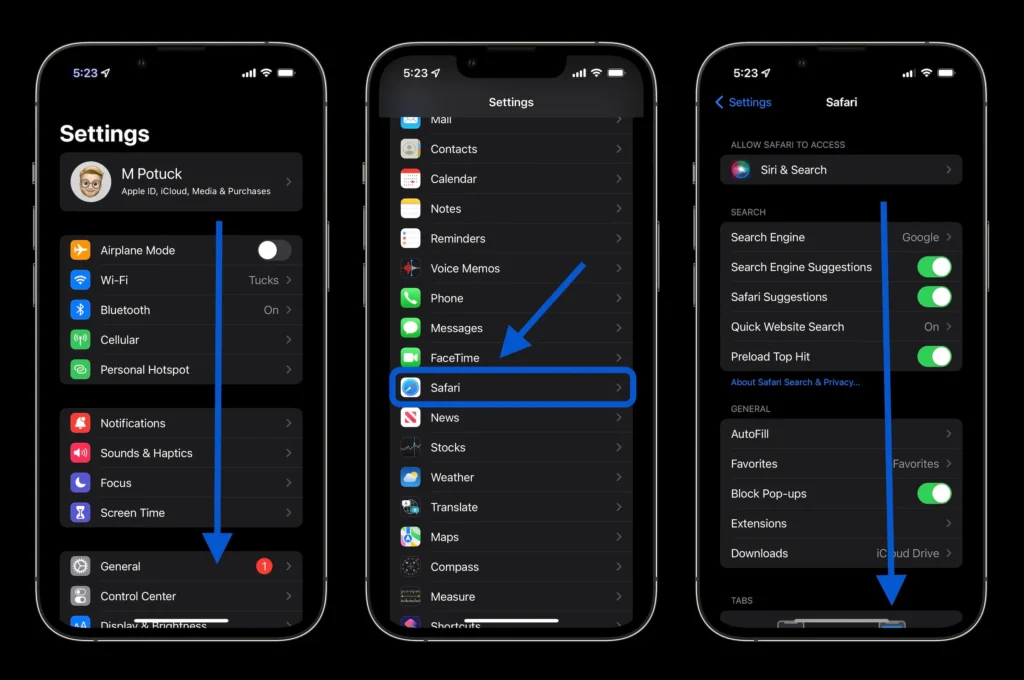
Step-by-Step Guide
Open Settings
Go to the Settings app on your iPhone.
Scroll Down to Safari
Tap Safari from the app list.
Select “Clear History and Website Data”
You’ll find this option near the bottom.
Confirm the Action
Tap “Clear History and Data.”
That’s it. Safari will instantly remove:
- Browsing history
- Website cookies
- Cached images
- Temporary files
- Saved website data
This method is one of the easiest ways to clear cache on iPhone and improve browsing speed.
What Happens After Clearing Safari Cache?
After clearing browser cache:
- Websites may log you out
- Pages might load slightly slower initially
- Some site preferences reset
However, your Safari performance usually improves immediately afterward.
How to Clear App Cache on iPhone
Unlike Android devices, Apple doesn’t offer a universal “clear cache” button for every app. Instead, different apps handle cached data differently.
Here are the most effective methods.
Offload Unused Apps
This feature removes the app itself while keeping your documents and settings intact.
Steps:
- Open Settings
- Tap General
- Select iPhone Storage
- Choose an app
- Tap “Offload App”
This helps free storage without deleting personal data.
Delete and Reinstall Apps
Some apps like Facebook, Instagram, TikTok, and Snapchat collect massive amounts of cache.
If an app becomes slow or buggy:
- Press and hold the app icon
- Tap Remove App
- Select Delete App
- Reinstall it from the App Store
This is often the fastest way to clear cache on iPhone apps completely.
How to Clear Cache for Popular iPhone Apps
Different apps store different types of cached data. Here’s how to manage the biggest offenders.
Instagram Cache
Instagram stores:
- Reels
- Stories
- Profile images
- Search history
Unfortunately, iOS doesn’t provide a direct clear cache button for Instagram.
The best option:
- Delete and reinstall Instagram
This removes temporary files and improves performance.
TikTok Cache
TikTok actually includes a built-in cache cleaner.
Steps:
- Open TikTok
- Go to Profile
- Tap the menu icon
- Select Settings and Privacy
- Tap “Free Up Space”
- Clear cache
TikTok cache can easily grow into several gigabytes over time.
Spotify Cache
Spotify stores downloaded tracks and playback data.
To clear Spotify cache:
- Open Spotify
- Go to Settings
- Select Storage
- Tap “Delete Cache”
This can recover significant storage space.
Snapchat Cache
Snapchat also offers a built-in cleaner.
Steps:
- Open Snapchat
- Tap Profile
- Go to Settings
- Scroll to Account Actions
- Select “Clear Cache”
This helps fix app lag and loading issues.
How to Clear System Cache on iPhone
System cache refers to temporary files created by iOS itself.
Apple doesn’t provide a direct button for clearing system cache, but several tricks work surprisingly well.
Restart Your iPhone
A simple reboot can clear temporary memory files instantly.
For Face ID iPhones:
- Hold Volume Up + Side Button
- Slide to power off
- Restart after 30 seconds
For Older iPhones:
- Hold Power Button
- Slide to turn off
- Restart device
This small step often improves responsiveness.
Update iOS
Software updates frequently optimize temporary system files.
To update:
- Open Settings
- Tap General
- Select Software Update
Keeping iOS updated improves speed, security, and cache management.
How to Free Up iPhone Storage
Many people searching how to clear cache on iPhone are actually dealing with storage problems.
Here are extra ways to recover space.
Delete Old Downloads
Check:
- Safari downloads
- Files app
- Netflix offline videos
- YouTube downloads
Unused files quietly consume storage.
Remove Unnecessary Photos
Photos and videos are major storage hogs.
Consider:
- Deleting duplicates
- Removing screenshots
- Using iCloud Photos
- Transferring media to external storage
Clear Message Attachments
Old videos and images inside Messages can eat up gigabytes.
Steps:
- Settings
- General
- iPhone Storage
- Messages
- Review large attachments
Delete what you no longer need.
Does Clearing Cache Delete Important Data?
This is one of the biggest concerns iPhone users have.
Thankfully, clearing cache usually does NOT remove:
- Photos
- Contacts
- Messages
- Notes
- Passwords
- Personal documents
However, you may lose:
- Saved website sessions
- Temporary app preferences
- Offline files
- Some login states
Always double-check before deleting app data entirely.
Benefits of Clearing Cache on iPhone
Regular cache cleanup provides several advantages.
Faster Performance
Apps launch more quickly and run smoother.
More Free Storage
You recover valuable gigabytes instantly.
Better Battery Life
Reduced background activity improves efficiency.
Fewer App Crashes
Removing corrupted files fixes many software issues.
Improved Browser Speed
Safari becomes cleaner and more responsive.
Better Overall Stability
Your iPhone feels refreshed and optimized.
It’s one of the simplest forms of iPhone maintenance.
How Often Should You Clear Cache on iPhone?
There’s no universal rule, but most users benefit from clearing cache:
- Once every month
- After major iOS updates
- When storage gets low
- If apps start crashing
- When Safari slows down
Heavy social media users may need more frequent cleanups.
Common Mistakes to Avoid
Clearing Everything Too Often
Cache exists for a reason. Excessive clearing may temporarily slow apps.
Deleting Important Downloads
Always review files before removing data.
Ignoring Large Apps
Apps like TikTok, Instagram, and Facebook accumulate huge cache files quickly.
Forgetting to Restart
A reboot helps complete many cleanup processes.
Best Practices to Keep iPhone Fast
Want long-term performance improvements? Follow these habits.
Keep Apps Updated
Developers regularly optimize storage usage.
Avoid Too Many Background Apps
Unused apps consume memory and battery.
Enable Offload Unused Apps
This automatic feature saves storage intelligently.
To activate:
- Settings
- App Store
- Toggle “Offload Unused Apps”
Use iCloud Storage
Cloud storage reduces local clutter.
Monitor iPhone Storage Regularly
Check:
- Settings
- General
- iPhone Storage
This helps spot problem apps early.
Difference Between Cache and Cookies
Many users confuse these two terms.
Here’s the difference:
| Feature | Cache | Cookies |
|---|---|---|
| Purpose | Speed up loading | Remember preferences |
| Stores | Images, scripts, temporary files | Login sessions and settings |
| Location | Browser and apps | Websites |
| Impact | Storage usage | Privacy and personalization |
When you clear Safari data, both are usually removed together.
Why iPhones Slow Down Over Time
Cache is only part of the story.
Other reasons include:
- Aging batteries
- Outdated iOS versions
- Full storage
- Background app refresh
- Heavy widgets
- Poor network connections
Still, clearing cache on iPhone remains one of the easiest fixes.
Is It Safe to Use iPhone Cleaner Apps?
You’ve probably seen ads promising “one-tap iPhone cleaning.”
Be careful.
Many cleaner apps:
- Offer limited functionality
- Require subscriptions
- Duplicate built-in iPhone tools
- Collect unnecessary data
In most cases, Apple’s built-in storage management features are enough.
Advanced Tips for Power Users
Clear RAM Manually
This trick can refresh memory on older iPhones.
For iPhones with Home Button:
- Hold Power Button
- When “Slide to Power Off” appears, hold Home Button
For Face ID Models:
AssistiveTouch methods may help, though results vary.
Disable Background App Refresh
Steps:
- Settings
- General
- Background App Refresh
- Turn off for unnecessary apps
This reduces hidden activity and improves battery performance.
Final Thoughts
Learning how to clear cache on iPhone can make a surprisingly big difference in daily performance. It’s one of those simple maintenance habits most users overlook until their phone starts acting sluggish.
The good news is you don’t need technical skills, expensive apps, or complicated tools. A few minutes spent clearing Safari data, managing app cache, and freeing storage can instantly improve speed, responsiveness, and battery life.
More importantly, regular maintenance helps your iPhone stay smooth for years instead of months.
If your device has been freezing, lagging, overheating, or running out of space, now is the perfect time to clean things up. Start with Safari cache, remove unnecessary app data, restart your phone, and monitor your storage regularly.