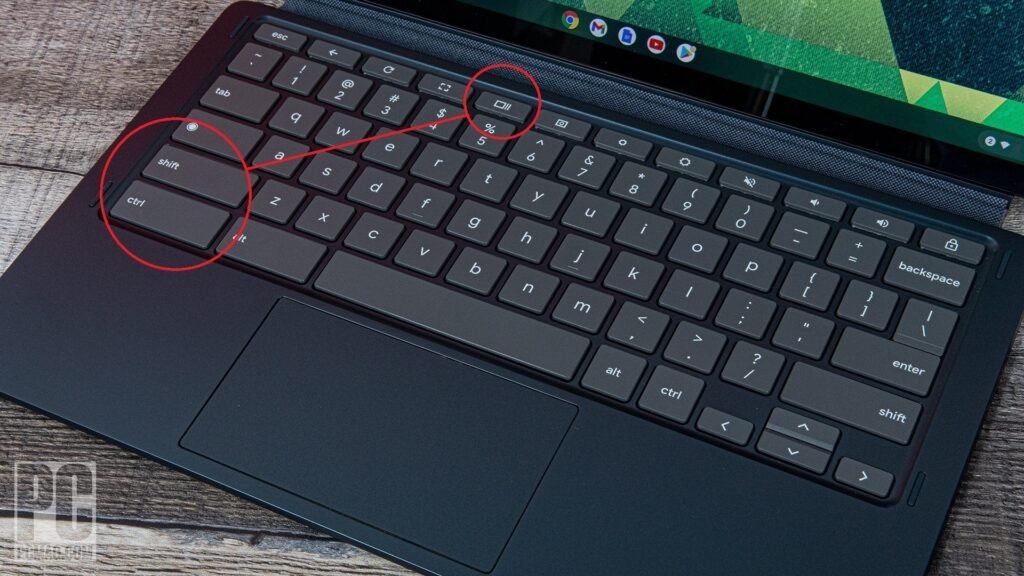

If you’ve recently switched to a Chromebook, one of the first things you’ll probably need to learn is how to take screenshots. Whether you’re saving important information, capturing a funny social media post, creating tutorials, or reporting technical issues, screenshots are incredibly useful.
The good news? Learning how to screenshot on Chromebook is surprisingly simple. ChromeOS offers several built-in screenshot tools, keyboard shortcuts, and screen capture options that make the process quick and effortless.
In this guide, you’ll discover 7 easy methods for taking screenshots on a Chromebook, along with helpful tips, troubleshooting advice, and productivity tricks to make screen capturing even easier.
Why Screenshots Matter on a Chromebook
Screenshots have become part of everyday digital life. Students use them for assignments, professionals capture presentations, and casual users save memorable conversations or online content.
Some common reasons people take screenshots include:
- Saving important information quickly
- Capturing error messages for troubleshooting
- Creating step-by-step tutorials
- Sharing content with friends or colleagues
- Recording online receipts and confirmations
- Saving images that cannot be downloaded
Knowing how to screenshot on Chromebook efficiently can save time and improve productivity.
Method 1: Take a Full-Screen Screenshot
The fastest way to capture everything visible on your Chromebook screen is by using a keyboard shortcut.
Keyboard Shortcut
Press:
Ctrl + Show Windows
The Show Windows key looks like a rectangle with two vertical lines beside it. It’s usually located in the top row of the keyboard.
What Happens Next?
Once pressed:
- Your entire screen is captured instantly.
- A notification appears in the bottom-right corner.
- The screenshot is automatically saved.
Best Use Cases
This method works perfectly when you want to:
- Capture an entire webpage
- Save online articles
- Record software settings
- Document system information
For many users, this is the quickest answer to how to screenshot on Chromebook.
Method 2: Capture a Partial Screenshot
Sometimes you don’t need the whole screen. Maybe you only want a specific image, chart, or paragraph.
ChromeOS allows you to select exactly what you want.
Keyboard Shortcut
Press:
Ctrl + Shift + Show Windows
Your cursor changes into a crosshair.
Steps
- Click and drag over the area you want to capture.
- Release the mouse button.
- The selected section is saved automatically.
Advantages
- Removes unnecessary content
- Creates cleaner screenshots
- Saves storage space
- Perfect for tutorials and presentations
Many users prefer this method because it provides more control when learning how to screenshot on Chromebook.
Method 3: Capture a Specific Window
If multiple apps are open, capturing a single window keeps things organized.
Open the Screenshot Toolbar
Press:
Shift + Ctrl + Show Windows
A screenshot toolbar appears at the bottom of the screen.
Choose Window Capture
- Select the window capture option.
- Click the window you want to capture.
- ChromeOS saves the image instantly.
When to Use It
This method is ideal for:
- Browser windows
- Productivity apps
- Classroom software
- Business presentations
It helps eliminate distractions from other open applications.
Method 4: Use the Chromebook Screenshot Tool
Modern Chromebooks include a built-in screenshot utility.
Open the Screen Capture Menu
Press:
Shift + Ctrl + Show Windows
The Screen Capture toolbar appears.
Available Options
You can choose:
| Capture Type | Description |
|---|---|
| Full Screen | Captures everything visible |
| Partial Screen | Capture selected areas |
| Window Capture | Capture a specific app window |
| Screen Recording | Record video of your screen |
Benefits
The screenshot tool offers:
- Easy navigation
- Visual controls
- Built-in screen recording
- User-friendly interface
If you’re searching for the easiest way to understand how to screenshot on Chromebook, this built-in tool is an excellent choice.
Method 5: Take Screenshots in Tablet Mode
Many Chromebooks feature touchscreen functionality and tablet mode.
Screenshot Shortcut for Tablet Mode
Press:
Power Button + Volume Down
This works similarly to Android devices.
Why It’s Useful
When your keyboard is folded away:
- No keyboard shortcuts are needed
- Quick screen capture
- Convenient for students
- Great for touchscreen users
This method makes how to screenshot on Chromebook even easier for hybrid devices.
Method 6: Use Quick Settings Screen Capture
ChromeOS includes a shortcut directly inside Quick Settings.
Steps
- Click the clock in the bottom-right corner.
- Open Quick Settings.
- Select “Screen Capture.”
- Choose your preferred capture option.
Advantages
- No keyboard shortcuts required
- Beginner-friendly
- Easy access
- Works well on touch-enabled devices
Many new Chromebook owners discover this feature after wondering how to screenshot on Chromebook without memorizing key combinations.
Method 7: Take Screenshots Using External Keyboards
Some Chromebook users connect external keyboards that don’t include the Show Windows key.
Fortunately, screenshots are still possible.
Alternative Shortcut
Press:
Ctrl + F5
On many external keyboards, F5 functions similarly to the Show Windows button.
Additional Combinations
- Ctrl + F5 = Full screenshot
- Ctrl + Shift + F5 = Partial screenshot
Helpful Tip
Check your keyboard manufacturer’s instructions because key mappings may vary.
This solution is particularly useful for desktop Chromebook setups.
Where Are Chromebook Screenshots Saved?
After learning how to screenshot on Chromebook, the next question is usually where to find the images.
Default Location
Screenshots are saved automatically in:
Downloads Folder
How to Access Them
- Open the Files app.
- Click Downloads.
- Locate your screenshot.
File Format
Most screenshots save as:
PNG files
PNG images provide excellent quality while maintaining manageable file sizes.
How to Copy a Screenshot Directly to the Clipboard
Sometimes you don’t need to save the screenshot permanently.
Instead, you may want to paste it directly into:
- Emails
- Documents
- Chat applications
- Online forms
Shortcut
Press:
Ctrl + Shift + Show Windows
Select your desired area.
Then use clipboard functions to paste where needed.
This improves workflow efficiency and reduces unnecessary file clutter.
How to Edit Screenshots on Chromebook
Capturing the screenshot is only part of the process.
ChromeOS offers several editing options.
Basic Editing Features
You can:
- Crop images
- Resize screenshots
- Rotate pictures
- Annotate images
- Highlight important details
Recommended Editing Apps
Popular options include:
- Gallery App
- Google Photos
- Canva
- Pixlr
- Adobe Express
These tools help create professional-looking screenshots for work, school, or social media.
Common Screenshot Problems and Solutions
Even though taking screenshots is straightforward, occasional issues can occur.
Screenshot Shortcut Not Working
Possible causes:
- Keyboard malfunction
- Outdated ChromeOS version
- Accessibility settings conflicts
Fixes
Try:
- Restarting your Chromebook
- Updating ChromeOS
- Testing another keyboard
- Checking shortcut settings
Screenshot Not Saving
Possible reasons:
- Storage is full
- Downloads folder issue
- Temporary software glitch
Solution
- Free up storage space
- Restart the device
- Check file permissions
Most screenshot problems can be resolved quickly.
Chromebook Screenshot Tips for Better Productivity
Now that you know how to screenshot on Chromebook, here are some expert tips.
Organize Screenshots
Create folders such as:
- Work
- School
- Receipts
- Tutorials
- Personal
Rename Files
Instead of keeping generic filenames:
- Project-Screenshot.png
- Assignment-Notes.png
- Meeting-Summary.png
Meaningful names improve organization.
Use Cloud Backup
Store screenshots in:
- Google Drive
- Dropbox
- OneDrive
Cloud storage prevents accidental loss.
Clean Up Regularly
Delete outdated screenshots periodically to save storage space.
Chromebook Screenshot Features You Might Not Know About
ChromeOS continues to improve its screen capture capabilities.
Screen Recording
The built-in Screen Capture tool can record:
- Full screen videos
- Partial screen recordings
- Window recordings
This feature is excellent for:
- Tutorials
- Online classes
- Product demonstrations
- Technical support
Integrated Sharing
After capturing screenshots, ChromeOS makes sharing simple through:
- Messaging apps
- Cloud storage
- Collaboration tools
These advanced features enhance the overall screenshot experience.
Chromebook Screenshot Shortcuts Cheat Sheet
Here’s a quick reference table for all major screenshot commands.
| Action | Shortcut |
| Full Screenshot | Ctrl + Show Windows |
| Partial Screenshot | Ctrl + Shift + Show Windows |
| Open Screenshot Toolbar | Shift + Ctrl + Show Windows |
| Tablet Mode Screenshot | Power + Volume Down |
| Full Screenshot (External Keyboard) | Ctrl + F5 |
| Partial Screenshot (External Keyboard) | Ctrl + Shift + F5 |
Saving this table can help you remember the shortcuts easily.
Conclusion
Learning how to screenshot on Chromebook is one of the most valuable skills for any Chromebook user. Whether you need a full-screen capture, a selected area screenshot, a window-only image, or a quick screenshot in tablet mode, ChromeOS provides multiple simple solutions.
The seven methods covered in this guide ensure there’s an option for every situation. From keyboard shortcuts and screen capture tools to tablet mode and Quick Settings access, taking screenshots has never been easier.